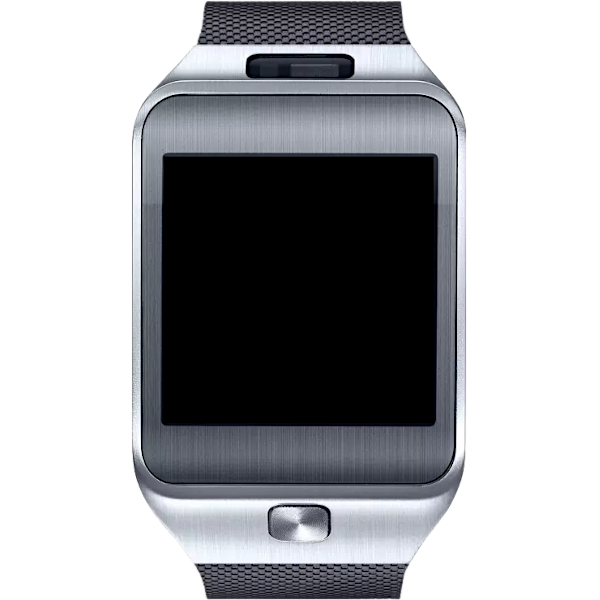
Hardware Support
Please make sure to test all hardware functions of your watch in your current operating system to rule out hardware defects before installing AsteroidOS. You can report any hardware support issue here. Use the label rinato for issues specific to your watch.
The following list shows the state of the features of the rinato version of this watch.
goodDisplay
goodTouch
goodBluetooth
goodHaptics
badTilt-to-Wake
goodAlways-on-Display
badMicrophone
goodHeart Rate
goodUSB
goodWLAN
badGPS
badNFC
| Model Number | Model Name | Codename |
|---|
| SM-R380 | Samsung Gear 2 | rinato |
| SM-R381 | Samsung Gear 2 Neo | rinato |
Warning!
The Samsung Gear 2 is the only watch supported by AsteroidOS using a mainline kernel. Its support is known for being experimental. It presents various limitations for a daily usage but is enough to get an overall overview of AsteroidOS.
- The system is very unstable.
- Battery usage is very inefficient.
Prepare installation
Inform yourself
See the watch wiki page for up-to-date information about this watch.
Downloads
Install Heimdall
Debian / Ubuntu
Fedora / CentOS
OpenSUSE
Arch and derivatives
Instructions
1. Reboot into bootloader mode
- Hold the front button until the Gear 2 logo is shown with the text "Rebooting..." (this last part is important!)
- When this screen is show, press the font button a bunch of times
- This opens a menu. Navigate to the 'DOWNLOAD' option by short pressing the button.
- Long press the front button. This will bring you to the download mode.
2. Installation
While your watch is in download mode, flash the userdata and boot partition:
3. Enjoy your new OS!
The Quick Start Guide will help you to get started.
See the wiki for detailed information about synchronization clients, SSH access, watchface and package installation, backup guide and much more!
Boot problems
Bootloop of any kind or stuck boot process
Don't panic. None of the commands we advised you to use can damage or brick your watch permanently.
You can always go back to the fastboot bootloader menu, by using the
manual finger combos for your watch.
Verify that you used the correct image files
Some devices like the Asus Zenwatch 2, the Fossil Gen4 models and the MTK6580 watches have more than one system image supplied, for different variants with slightly different hardware. Most watches have a graphical fastboot menu that shows the correct codename for the watch. Others need to be identified using the hardware differences noted above in the install section.Clean your watch and charger contacts
Even in case the fastboot flash process succeeds with no errors, it can still silently fail due to connection problems caused by dirty contacts. Clean the pins and pads with isopropyl alcohol. Ideally using that old toothbrush you keep around for electronics cleaning or a microfiber cloth. Carefully sanding the contacts (e.g. with a nailfile) can help in case of obvious corrosion.Ensure a stable USB connection
Put the watch and your computer on the same flat surface. Try to not move the cable connecting your computer and the watch during the whole flashing process. In case of worn or corroded contacts and pogo-pins that lost their springiness, it might be useful to attach the watch to its cradle or charging cable using duct tape or rubber bands.Repeat the flash process
Some users have reported needing up to five flashing attempts for a successful result.
There is a small chance that the image files were corrupted during download. To guard against this, it's recommended to verify the checksums. Download the SHA512SUMS file (
rinato
) and verify the checksums with sha512sum --check SHA512SUMS. The checksums for both files will be checked.
Boot gets stuck even after repeated reflash
Congratulations, you might have found a new issue for us to solve. While this should not happen with stable builds, the nightlies are advancing quickly, and are not tested on all watches. You are likely using a nightly build, as the installation pages currently link to those. You can try again and
install a stable build when available.
To help us solve the problem, you could try to collect logs. It is possible that the watch does not show a UI but is already accessible using
ssh ceres@192.168.2.15 or
adb shell in the state the boot process stops. In case SSH connection works, try the following commands to write logs to local .txt files.
ssh root@192.168.2.15 "journalctl" > journal-watch.txtssh root@192.168.2.15 "/system/bin/logcat" > logcat-watch.txt
or, if your watch presents an ADB interface, use the following commands:
adb shell journalctl > journal-watch.txtadb shell "/system/bin/logcat" > logcat-watch.txt
In case no connection is available, it is still interesting to see if the watch leaves any traces in your local dmesg. Try to spot USB related messages in
sudo dmesg -w while the watch is connected and booting. Record the log using the
sudo dmesg > dmesg-local.txt command.
You can share those logs in a new
Github issue tagged with the watch codename. For support chat, you are invited to
join our Matrix channel.
Watch only boots when powered via USB, but shuts off when booted while worn
This is a clear sign of a worn battery that will soon fail. Maybe you should replace it.
The boot process of AsteroidOS uses all cores of a watch to ensure a fast startup. This leads to power spikes during the boot process, which can completely shut down watches with worn out batteries. It has been observed that WearOS can still boot on watches with worn out batteries, but AsteroidOS cannot, depending on the progress of battery wear. However, AsteroidOS can usually still provide a useful 10-20 hours of uptime when the watch is worn once booted while powered up.
Batteries are relatively easy to replace on watches with screwed down backs. Glued back plates usually require creative solutions involving hair driers.
Watch successfully boots into the AsteroidOS user interface, but immediately reboots
This is a known behavior when the battery charge is very low. The watch usually recovers from this condition by simply boot cycling for some time. All watches also charge in fastboot or recovery mode. Letting the watch dwell on the fastboot or recovery menu screen for some time should fix the problem even faster.
Flashing problems
Watch is not detected and all fastboot commands fail
When using Linux,
try prepending sudo to the commands to execute them with root privileges. If that works, you are missing UDEV rules for Android devices that would allow your user to execute the commands. Many package managers provide the android-udev-rules, which avoids the need to manually set up these UDEV rules. If the package is not available on your system, you can follow the instructions at the official android-udev-rules repository.
On Windows systems,
this usually happens due to driver issues. If you have installed an Android USB driver other than the official Google USB driver that we link to in the installation fields above, please remove it. Then reinstall the Google USB driver or update it by installing a possibly newer version.
We find that the Linux fastboot drivers are more reliable. It is very easy to create a bootable live Linux USB stick, for example, following these instructions at askubuntu.com, and then follow the above Linux installation commands after booting the live Linux USB stick.
USB 3.0 ports
ADB connection works, but fastboot does not?
The
fastboot oem unlock command not working even though the watch could be booted into fastboot mode using
adb reboot bootloader is a known issue on windows systems. It is caused by using a watch manufacturer USB driver with missing fastboot support. Try removing that one and install the
offical Google USB driver we linked above in the install section.
Fastboot command crashes or hangs at "invalid sparse file format at header magi" (explicitly missing the "c" in magic)
This error occurs when using deprecated fastboot and ADB versions on Windows systems. If you already had adb.exe and fastboot.exe installed and skipped downloading our
supplied ZIP file, please install and try those commands instead. Another reliable source for updated windows ADB and fastboot versions is the
official Google platform tools ZIP file.
Fastboot command stops with error during the ~5 minute flashing process
Smartwatches are prone to lose a proper connection to their cradle over time due to sweat corroding the watch pins.
Clean the pins and pads with isopropyl alcohol and repeat the flashing process.
Try to ensure a stable USB connection by putting the watch and your computer on the same flat surface. Try to not move the cable connecting your computer and the watch during the whole flashing process. In case of worn or corroded contacts and pogo-pins that lost their springiness, it might be useful to attach the watch to its cradle or charging cable using duct tape or rubber bands.
Fastboot command displays "invalid sparse file format at header magic" when starting to flash the device
This is not a fatal error and can safely be ignored. Fastboot expects images to be in sparse format. When a raw image is supplied like in case of most of the AsteroidOS watches, fastboot converts it to sparse and shows above message.